Developing and testing websites locally is a crucial step in web development. Localhost allows you to experiment and refine your website without affecting the live site. WordPress installation on localhost is a straightforward process that enables you to build and test your website in a controlled environment.
By installing WordPress on your local machine, you can test themes, plugins, and custom code without risking your live website. This step-by-step guide will walk you through the process, making it easy to get started with local WordPress development.
Key Takeaways
- Understand the importance of local development for testing and development purposes.
- Learn the basics of WordPress installation on localhost.
- Discover the benefits of testing WordPress locally before going live.
- Get started with a step-by-step guide to installing WordPress on localhost.
- Improve your website development workflow with local testing.
What is a Localhost and Why Use It?
The concept of localhost is fundamental for anyone looking to develop WordPress sites locally. Localhost, or local development, refers to the process of creating and testing websites on your own computer rather than on a live server. This approach provides a safe and controlled environment for experimentation and development.
Benefits of Local WordPress Development
Developing WordPress sites locally offers several key benefits. Firstly, it allows developers to test themes, plugins, and custom code without risking the integrity of a live site. This is particularly useful for trying out new or experimental features. Secondly, local development enables developers to work offline, which can be advantageous in areas with unreliable internet connectivity. Lastly, localhost development provides a flexible environment where changes can be made quickly and tested immediately, streamlining the development process.
Using localhost for WordPress development also enhances security. Since the site is not publicly accessible, there’s less risk of it being hacked or indexed by search engines prematurely. Moreover, developers can easily create multiple local sites for different projects or clients, making it a versatile tool for web development.
Limitations of Local Installations
While local WordPress development has numerous advantages, it also comes with some limitations. One of the primary challenges is the potential difference in performance between the local environment and the live server. Factors such as server configuration, PHP version, and database settings can vary significantly, affecting how the site behaves when it’s eventually uploaded to a live server.
Another limitation is the need for manual configuration. Setting up a local development environment requires installing and configuring software like XAMPP, MAMP, or Local by Flywheel, which can be daunting for beginners. Additionally, local installations may not perfectly replicate the conditions of a live server, potentially leading to issues when the site is migrated.
Tools You’ll Need for Local WordPress Installation
The first step in installing WordPress on localhost is to choose a suitable local development environment. This environment will serve as the foundation for your WordPress site, allowing you to develop and test it locally before going live.
Local Development Software Options
There are several local development software options available, each with its own strengths. Popular choices include XAMPP, MAMP, and Local by Flywheel. XAMPP is a widely-used, open-source stack that supports multiple operating systems. MAMP is another popular option, especially for Mac users. Local by Flywheel is a user-friendly tool that simplifies the process of creating and managing local WordPress sites.
System Requirements
Before installing any local development software, ensure your computer meets the necessary system requirements. Typically, you’ll need a relatively modern operating system (Windows 10 or macOS), sufficient RAM (at least 4GB, but 8GB or more is recommended), and enough free disk space (at least 1GB for the software and additional space for your WordPress site).
| Software | Operating System | RAM Requirement | Disk Space |
|---|---|---|---|
| XAMPP | Windows, macOS, Linux | 4GB (8GB+ recommended) | 1GB+ |
| MAMP | macOS | 4GB (8GB+ recommended) | 1GB+ |
| Local by Flywheel | Windows, macOS | 4GB (8GB+ recommended) | 1GB+ |
Method1: Installing WordPress Using XAMPP
One of the simplest ways to install WordPress locally is by utilizing XAMPP, which bundles Apache, MySQL, and PHP in one package. XAMPP provides a straightforward and efficient way to create a local development environment for WordPress.
Downloading and Installing XAMPP
To start, you need to download XAMPP from the official Apache Friends website. Once downloaded, run the installer and follow the prompts to install XAMPP on your computer. The installation process is straightforward, and you can choose the components you wish to install, such as Apache and MySQL, which are essential for WordPress.
Starting Apache and MySQL Services
After installing XAMPP, you need to start the Apache and MySQL services. Open the XAMPP Control Panel, and click on the “Start” button next to Apache and MySQL. This will initiate the services necessary for running WordPress locally.
Creating a Database for WordPress
With Apache and MySQL running, you need to create a database for your WordPress installation. Open phpMyAdmin by accessing http://localhost/phpmyadmin in your web browser. Create a new database by clicking on the “New” button, entering a database name, and clicking “Create.”
Troubleshooting Common XAMPP Issues
While XAMPP is a reliable tool, you may encounter issues such as port conflicts or service failures. To troubleshoot, check the XAMPP Control Panel logs for error messages, or consult the XAMPP community forums for solutions to common problems.
Method2: Installing WordPress Using MAMP
Mac users can easily install WordPress locally using MAMP. MAMP is a popular development tool that allows you to create a local server environment on your Mac, making it an ideal choice for testing and developing WordPress sites before they go live.
Downloading and Installing MAMP
To start, you need to download and install MAMP from the official MAMP website. The free version is sufficient for most users. Once downloaded, follow the installation instructions provided to install MAMP on your Mac.
After installation, you can launch MAMP and start configuring it for your WordPress installation.
Configuring Ports and Document Root
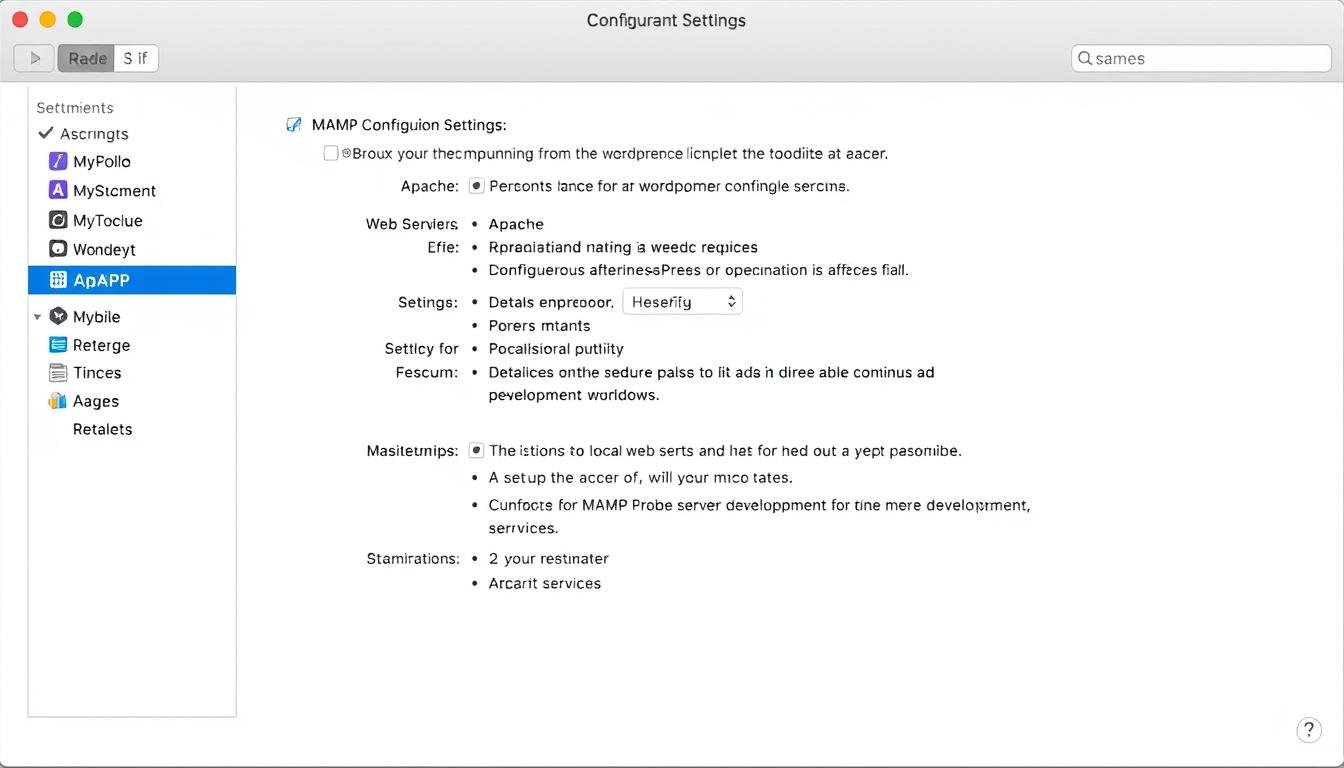
Upon opening MAMP, you’ll need to configure the ports and document root. By default, MAMP uses ports 8888 and 8889 for Apache and MySQL, respectively. You can change these if they conflict with other services on your Mac.
The document root is where your WordPress files will be stored. You can set this to a directory of your choice, but it’s recommended to use the default setting unless you have a specific reason to change it.
Creating a Database in MAMP
To install WordPress, you need a database. MAMP comes with phpMyAdmin, a tool for managing MySQL databases. You can access phpMyAdmin through the MAMP interface and create a new database for your WordPress installation.
To create a database, open phpMyAdmin, click on the “Databases” tab, and follow the prompts to create a new database. Make sure to note down the database name, as you’ll need it during the WordPress installation process.
With MAMP set up and a database created, you’re ready to proceed with installing WordPress. This process involves downloading WordPress, configuring the wp-config.php file, and running the installation script, which will be covered in subsequent sections.
Method3: Using Local by Flywheel
Local by Flywheel simplifies the process of creating a local WordPress environment, making it ideal for developers and bloggers alike. This method eliminates the need for manual configuration, allowing users to focus on building their WordPress sites.
Downloading and Installing Local
To start using Local by Flywheel, you first need to download and install it on your computer. Visit the official Local by Flywheel website and select the appropriate version for your operating system. Once downloaded, follow the installation instructions provided.
Creating Your First Local WordPress Site
After installing Local by Flywheel, creating your first local WordPress site is straightforward. Launch the application, and you’ll be greeted with a user-friendly interface. Click on the “Create a new site” button, and follow the prompts to select your preferred WordPress version and site name. Local by Flywheel will automatically download the necessary files and configure your site.
Key Features:
- Easy site creation
- Automatic WordPress installation
- SSL support
- Mailcatcher integration
Managing Multiple Local Sites
One of the advantages of using Local by Flywheel is its ability to manage multiple local sites. You can easily switch between sites, and the application provides a clear overview of your site’s status. This feature is particularly useful for developers working on multiple projects simultaneously.
| Feature | Description | Benefit |
|---|---|---|
| Multi-site management | Manage multiple WordPress sites | Increased productivity |
| SSL support | Enable SSL for local sites | Enhanced security |
| Mailcatcher | Catch and view emails sent from your site | Simplified testing |
How to Install WordPress on Localhost (Step By Step)
Now that we have our local development environment set up, it’s time to install WordPress. Installing WordPress on localhost is a straightforward process that involves downloading WordPress files, configuring the wp-config.php file, running the installation script, and completing the setup.
Downloading WordPress Files
The first step is to download the latest version of WordPress from the official WordPress website. You can do this by visiting https://wordpress.org/download/ and clicking on the “Download WordPress” button. Once downloaded, extract the zip file to a folder on your computer.
Configuring wp-config.php
After extracting the WordPress files, you’ll need to configure the wp-config.php file. This file contains the database connection details and other important settings. To configure it, you’ll need to create a database and note down the database name, username, and password. Then, rename the wp-config-sample.php file to wp-config.php and edit it with your database details.
| Database Setting | Description | Example Value |
|---|---|---|
| DB_NAME | Name of the database | wordpress_db |
| DB_USER | Database username | root |
| DB_PASSWORD | Database password | password123 |
| DB_HOST | Database host | localhost |
Running the Installation Script
With the wp-config.php file configured, you can now run the WordPress installation script. Open your web browser and navigate to http://localhost/your-wordpress-folder (replace “your-wordpress-folder” with the actual folder name where you extracted WordPress files). You will see the WordPress installation page. Follow the on-screen instructions to complete the installation.
Completing the WordPress Setup
After running the installation script, you’ll be prompted to enter your site title, admin username, password, and email address. Fill in these details to complete the WordPress setup. Once done, you’ll be logged in to your WordPress dashboard, where you can start customizing your site.
By following these steps, you have successfully installed WordPress on your localhost. You can now start building your website or blog without affecting a live site.
Setting Up SSL on Your Local WordPress Site
Setting up SSL on your local WordPress site is a crucial step in ensuring a secure development environment. This not only protects your site from potential security threats but also mirrors the conditions of a live site, making it easier to test and debug.
Why Local SSL Matters
Having SSL on your local WordPress site matters because it ensures that your development environment is as close as possible to your live site. This is crucial for testing plugins and themes that require SSL, such as e-commerce plugins. Moreover, with Google emphasizing HTTPS as a ranking signal, developing on an HTTPS connection locally can help you identify potential issues early on.
Some key benefits of local SSL include:
- Enhanced Security: Protects data exchanged between your site and its users.
- Better Testing Environment: Closer to a live environment, reducing the chance of SSL-related issues when you go live.
- Compliance with Modern Web Standards: Aligns with the current web trend of using HTTPS by default.
Enabling SSL in Different Local Environments
Enabling SSL on your local WordPress site varies depending on the local development environment you’re using, such as XAMPP, MAMP, or Local by Flywheel.
For instance, in XAMPP, you need to enable the SSL module and configure your Apache server to use the SSL certificate. Here’s a brief overview:
- Edit the httpd.conf file to enable the SSL module.
- Configure the httpd-ssl.conf file with your certificate details.
Similarly, in MAMP and Local by Flywheel, the process involves generating a self-signed certificate and configuring your server settings. Local by Flywheel often simplifies this process with built-in options to enable SSL.
Accessing and Managing Your Local WordPress Database
Understanding how to manage your local WordPress database is key to successful site development. Your WordPress database stores all your site’s content, settings, and other crucial information. Accessing and managing this database is essential for maintaining and troubleshooting your site.
Using phpMyAdmin
phpMyAdmin is a popular tool for managing MySQL databases, including those used by WordPress. To access your database using phpMyAdmin, you first need to ensure that your local server environment is running. Most local development environments like XAMPP or MAMP come with phpMyAdmin pre-installed.
To manage your database, follow these steps:
- Open phpMyAdmin by navigating to http://localhost/phpmyadmin in your web browser.
- Log in with your database username and password.
- Select your WordPress database from the list on the left.
Common Database Operations
Common database operations include creating and dropping tables, importing and exporting data, and optimizing database performance. Here are some key tasks you can perform:
- Exporting your database: This creates a backup of your database, which is crucial for restoring your site in case of data loss or corruption.
- Importing data: Useful for transferring data from one database to another or restoring from a backup.
- Optimizing database performance: Regular optimization can improve your site’s performance by reducing overhead and fixing issues.
By mastering these operations, you can efficiently manage your local WordPress database, ensuring a smooth development process.
Working with WordPress Themes and Plugins Locally
When it comes to WordPress development, working locally with themes and plugins is indispensable. This approach allows developers to test and refine their work without impacting live websites. By leveraging local development environments, developers can ensure a smoother transition to production.
Installing and Testing Themes
Installing WordPress themes locally is a straightforward process that involves uploading the theme to the wp-content/themes directory. You can then activate the theme through the WordPress dashboard. Testing themes locally allows you to check for compatibility issues and make necessary adjustments before deploying to a live site.
To compare different themes, consider the following factors:
| Theme | Responsiveness | Customization Options |
|---|---|---|
| Theme 1 | Yes | Extensive |
| Theme 2 | No | Limited |
Installing and Testing Plugins
Similarly, installing WordPress plugins locally involves uploading the plugin to the wp-content/plugins directory and activating it through the dashboard. Local testing helps identify potential conflicts with other plugins or themes. As WordPress Plugin Directory states, “Always test plugins in a safe environment before installing them on a live site.”
“Testing plugins locally is crucial for ensuring they don’t break your site.” –
Development Best Practices
Following local development best practices is essential for efficient WordPress development. This includes using version control systems like Git, keeping your local environment updated, and regularly backing up your database. By adhering to these practices, you can ensure a smooth development process and minimize potential issues when deploying to a live server.
Moving WordPress from Localhost to a Live Server
Migrating your WordPress site from a local development environment to a live server is a crucial step in making your website accessible to the public. This process involves several key steps that need to be executed carefully to ensure a smooth transition.
Manual Migration Process
The manual migration process involves exporting your local database, modifying the configuration files, and then uploading your site to the live server. First, you’ll need to export your local database using phpMyAdmin. Then, you’ll modify the wp-config.php file to match your live server database credentials. Finally, you’ll upload your WordPress files to the live server using an FTP client.
Using Migration Plugins
For those who prefer a more automated process, migration plugins like Duplicator or All-In-One WP Migration can simplify the task. These plugins handle the database export and file transfer for you, reducing the risk of errors. To use a migration plugin, simply install and activate it on your local site, follow the plugin’s instructions to create a package or backup, and then upload it to your live site.
Updating URLs and Paths
After migrating your site, you’ll need to update the URLs and paths to reflect your new live server environment. This can be done using a plugin or manually through the database. It’s essential to update the siteurl and home options in your WordPress database to your new site URL. You can also use SQL queries or plugins like Velvet Blues Update URLs to update URLs throughout your site.
By following these steps, you can successfully migrate your WordPress site from localhost to a live server, making it accessible to your audience. Whether you choose a manual or automated approach, careful planning and execution are key to a successful migration.
Conclusion
Installing WordPress on a localhost is a crucial step in web development, allowing developers to test and refine their websites in a safe environment. Throughout this article, we’ve explored the importance of local development, the tools needed, and the step-by-step process of WordPress installation on localhost.
Using tools like XAMPP, MAMP, or Local by Flywheel, developers can easily set up a local development environment. Configuring WordPress on localhost involves downloading WordPress files, creating a database, and completing the installation script. Additionally, setting up SSL and managing the local WordPress database are essential steps in the process.
Local WordPress development offers numerous benefits, including the ability to test themes and plugins, migrate sites to live servers, and develop websites without affecting the live site. By mastering local WordPress development, developers can streamline their workflow, improve productivity, and deliver high-quality websites to clients.
With the knowledge gained from this article, developers can confidently install and configure WordPress on localhost, taking the first step towards efficient and effective web development.
FAQ
What is a localhost?
A localhost is a local development environment on your computer that allows you to test and develop websites without affecting a live site.
Why use XAMPP, MAMP, or Local by Flywheel for WordPress development?
These tools provide a local development environment that allows you to test WordPress themes, plugins, and custom code without affecting a live site, and they offer flexibility and ease of use.
How do I create a database for WordPress on localhost?
You can create a database using phpMyAdmin, a tool that comes with XAMPP and MAMP, by logging in, clicking on the “Databases” tab, and creating a new database.
What are the system requirements for running local development software?
The system requirements vary depending on the software, but generally, you’ll need a relatively modern computer with a decent amount of RAM, a compatible operating system, and sufficient disk space.
How do I install WordPress on localhost using XAMPP or MAMP?
To install WordPress, download the WordPress files, extract them to your localhost document root, create a database, configure wp-config.php, and run the installation script.
Can I use SSL on my local WordPress site?
Yes, you can enable SSL on your local WordPress site using various methods depending on your local development environment, such as generating a self-signed certificate or using a tool like Local by Flywheel.
How do I migrate my WordPress site from localhost to a live server?
You can migrate your site manually by exporting your database, transferring your files, and updating your wp-config.php file, or you can use a migration plugin to simplify the process.
What are some best practices for working with WordPress themes and plugins locally?
Best practices include testing themes and plugins thoroughly, using a version control system, and following WordPress coding standards to ensure compatibility and maintainability.
How do I access and manage my local WordPress database?
You can access and manage your database using phpMyAdmin, which allows you to perform common database operations such as creating tables, importing/exporting data, and optimizing database performance.
Can I manage multiple local WordPress sites using Local by Flywheel?
Yes, Local by Flywheel allows you to create and manage multiple local WordPress sites, making it easy to switch between sites and manage your local development workflow.